Helping students work smarter, not harder.
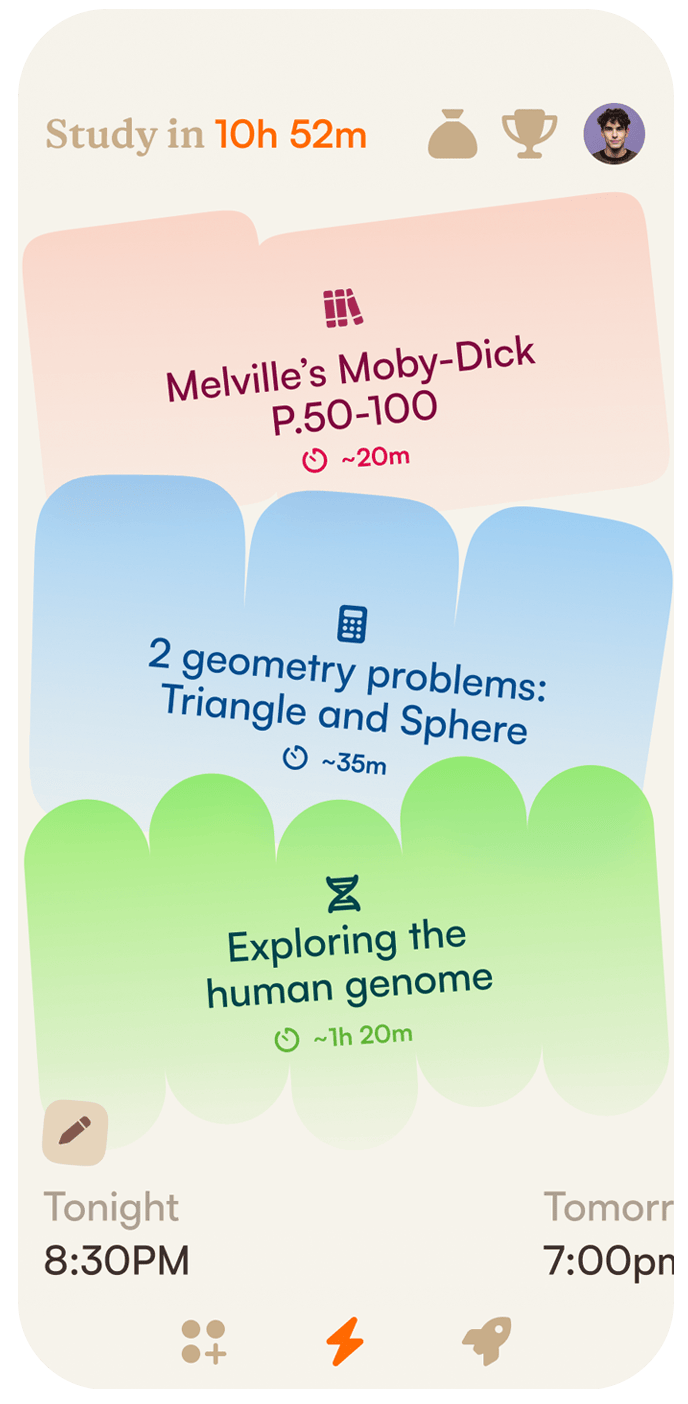
Westminster is partnering with Uluru to provide families access to a digital tool that helps students develop the skills necessary to become more self-directed. Not only will they be more organized and persistent, they’ll feel more motivated, too!
- Automatically syncs homework assignments
- Breaks assignments into smaller tasks
- Builds effective study routines

The solution is to scaffold students’ development, to make them the best self-directed facilitators, as early as possible, allowing them to approach ever more rigorous responsibilities into the future. Uluru solves this by creating an environment where skill building seamlessly integrates into academic tasks to encourage students to stay motivated, and in control. Parents are quietly notified of progress, pacing, and are granted the opportunity to positively reinforce their child’s efforts. Helping students celebrate the small wins, not only those related to a final grade. This fully removes the academic burden facing most families, improving student outcomes, and family relationships. No more awkward check-ins if a student has finished an assignment. Parents are happier, students are ecstatic
Parents hate helicoptering and students hate it even more!
Resources for parents
Add Your Heading Text Here Add Your Heading Text Here

Getting Started with Uluru
Parents create an account, activate a subscription, and then link to their student’s account. We’ll tell you how:

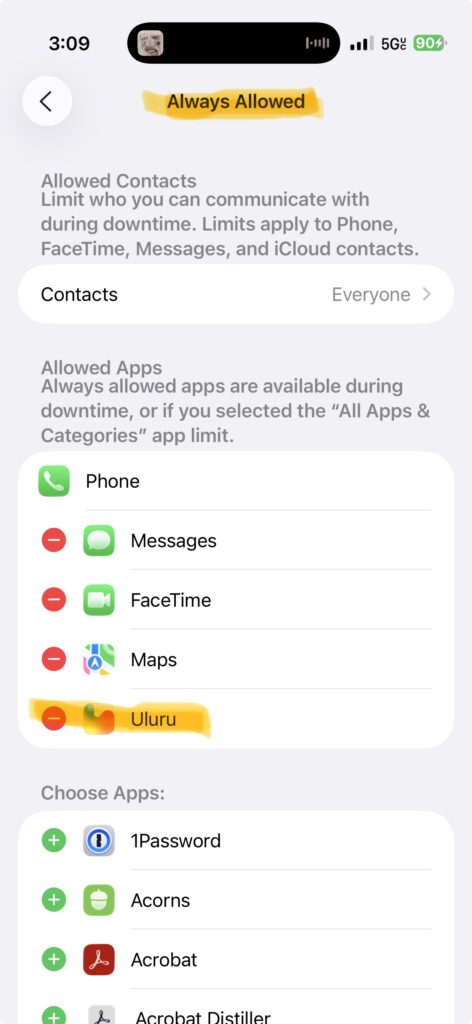
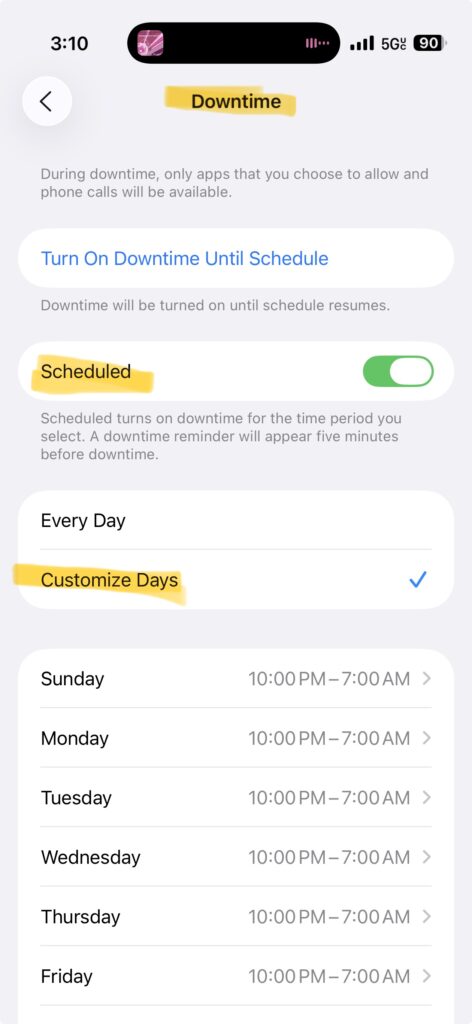
Managing Screentime
Our guide to Apple Downtime settings will help you set limits on distractions during homework.

Ready to sign up?
Here's what you get!
Parent registration takes about five minutes. Westminster families get discounted subscriptions at $16 /mo.
Connected Dashboards
Parents have a seamlesss connection to their students’ dashboards. If you have multiple students, all of their information can be accessed from one location with the simple click of a button. You no longer need to sign into multiple accounts to see what’s happening. Parents have an extra view where they can track how well students are working within the application. This gives families more insights in order to positively reinforce or reward students for their hard work.
Automatic Notifications
To further remove the academic burden, parents receive automatic notifications when students begin and submit their work. Additionally, there are other notifications related to specific executive functioning strategies the student executes within the app. This includes, when they prepare assignments, break things down into smaller tasks, set their study schedules, and more. These notifications provide other opportunities to be aware of progress, and positively reinforce these important skills in the moment. Which is most effective way to help students to internalize new skills.
Google Classroom Integration
Uluru seamlessly integrates with most popular learning management systems (LMS), including Google Classroom. This means Uluru is able to integrate executive function guidance directly in a students’ homework routine, every time they are working. This consistency is unmatched, and is the best way for students to build the crucial skills necessary to build agency and motivation. If parents have students at other schools that use a different LMS, they can also access that students assignment information from the same dashboard.
Daily Assignment Planning
One of the many exciting features is Uluru’s guidance in helping students plan their study schedule each day by prioritizing and sequencing their tasks, setting their study blocks, and estimating time. Students love the independence, parents love not helicoptering. All you need to do is be their biggest cheerleader, not their work police.
Progress Monitoring
Students are encouraged to think about their goals, and plan accordingly. Then it helps them monitor their progress, during and after assignments. Parents are quietly kept in the loop as well, and they can step in to help if needed. If a student doesn’t meet a particular time goal, for example, Uluru will suggest they give themselves more time the next study session. This encouragement to monitor progress is essential for students to build greater self-awareness over time.
Time Management
Time management is one of the foundational self-regulation skills all students (and adults ;)) need. One of the first things students master is consistently looking at their work load, and determining the amount of time needed to complete a given amount of work. The more students engage with Uluru, the better it adapts and encourages students to make better decisions. It’s almost like a video game, but it’s for school, and all parents need to do is support and motivate. This will help students internalize these skills even faster!
Constant Updates
Uluru is constantly updating with new features, and your membership ensures you’ll automatically receive all updates into the future.

We're here to help.
Reach out to us
Nina Barraclough is your point of contact for questions and support.
You can email her at: nina@theuluru.com